Jira permission scheme audit: who can see and do what in Jira Cloud
A Jira permission audit works through layers: public access, grants to every logged-in user, the permission schemes spaces share, roles, groups and global permissions, and work item security levels. A step-by-step procedure for Jira Cloud, and the order in which to fix what you find.

Most Jira exposure is not a breach. It is a grant to “everyone” that someone added years ago and nobody has read since.
A Jira permission scheme audit answers two questions for every space: who can see it, and who can change what inside it. In Jira Cloud the answer is spread across layers: product access in Atlassian Administration, global permissions, the permission scheme each company-managed space uses, space roles and groups, the access level of each team-managed space, and work item security levels.
Audit them in order of exposure. Public access first, then grants to every logged-in user, then schemes shared by many spaces, then roles, groups and global permissions, then individual work items. That order finds the worst problems in the first hour.
What decides who can see a Jira work item?
Every layer has to say yes. The person needs access to Jira. The space has to grant them “Browse spaces” (formerly Browse projects): through its permission scheme if it is company-managed, or through its access level and roles if it is team-managed. And if the work item has a security level, they must be in it. The first layer that says no wins.
One exception cuts across all of it. A permission granted to Public applies to anyone on the internet, with no Jira license and no login. That is why public access comes first.
Step 1: find anything public
- Permission schemes that grant Browse spaces to Public. Atlassian’s article on public spaces explains that this lets anyone view the space and its work items without Jira access. Older documentation calls the same grantee “Anyone on the web”. If “Create work items” is also granted to Public, anonymous visitors can create work. Free plans cannot share spaces publicly; Standard and above can.
- Public filters and dashboards. Jira’s general configuration includes a setting that allows users to share dashboards and filters with the public. Turn it off unless you publish on purpose, and review existing shares under Shared items, as Atlassian’s knowledge base describes.
- Browse users and groups. This global permission shows the names of all site users in user pickers and mentions. It belongs to internal groups only.
Confirm each fix by opening the space in a private browser window. You should land on a login page.
Step 2: check grants to every logged-in user
The “Any logged-in user” grantee covers every account with access to Jira, including the contractors and partners you have invited. It often appears in default schemes for Browse spaces and Create work items. For an internal engineering space that may be fine; for HR, legal, security or customer data it rarely is.
Do the same check for team-managed spaces. An Open space lets anyone on the site view, create and edit its work items, and a Limited space lets anyone view and comment, according to Atlassian’s access levels. Sensitive team-managed spaces should be Private. How the two space types handle access is compared in team-managed vs company-managed spaces.
Step 3: map schemes to spaces
Open the permission schemes page (Settings, then Work items, then Permission schemes under the work item attributes) and list each scheme with the spaces that use it. You are looking for:
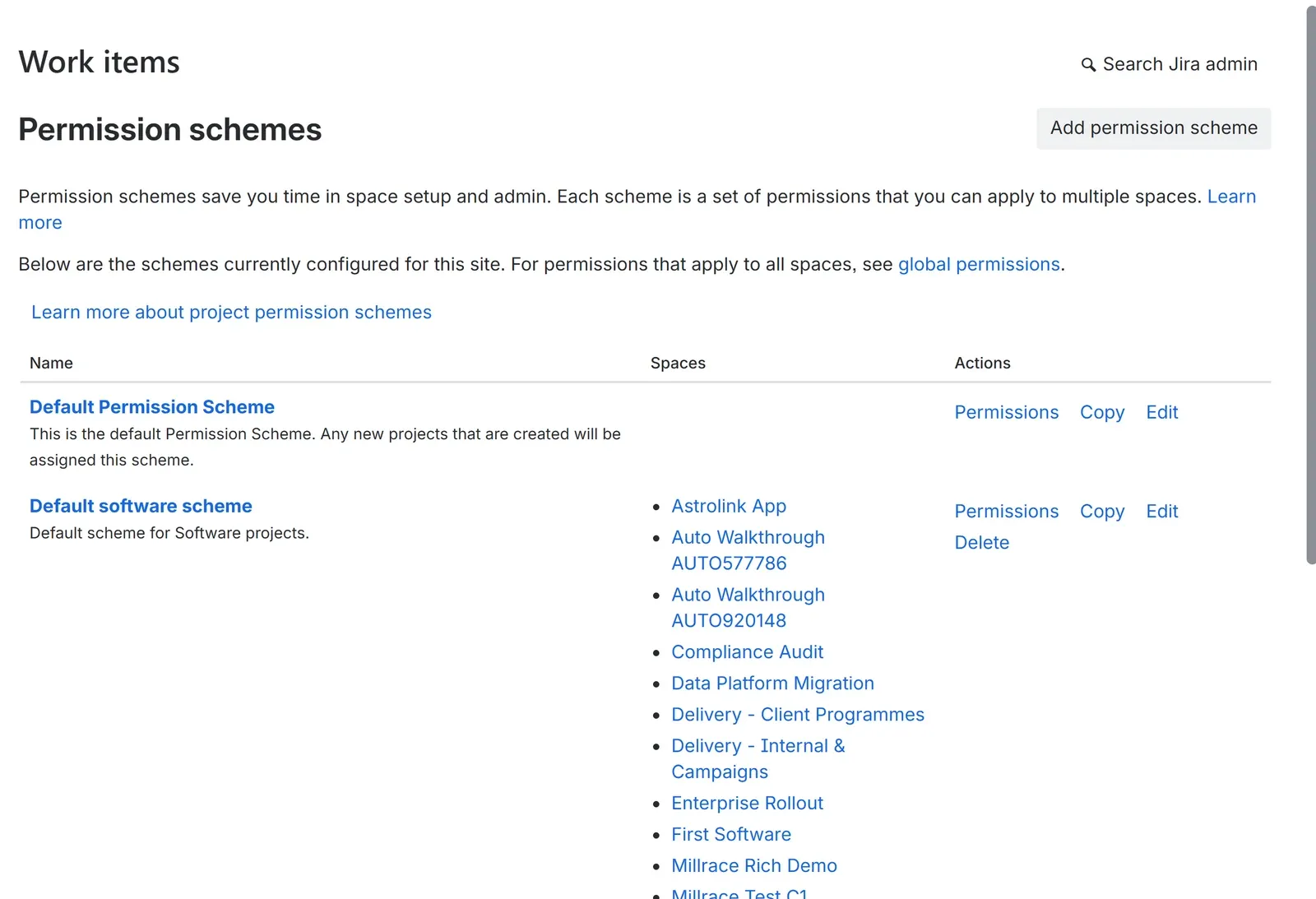
- One scheme serving sensitive and ordinary spaces. Split it, so tightening one space does not break the others.
- Grants to named users or groups instead of space roles. Roles let each space decide its own members; a group or a named user in a shared scheme applies to every space on that scheme.
- Near-identical copies. Ten schemes that differ by one line are ten things to audit. Consolidate where you can.
One grant deserves care: the space role that installed apps use to reach work in your spaces. Leave it in place unless you know which app depends on it, or that app stops working in those spaces.
Step 4: review roles, groups and global permissions
Groups grant product access and global permissions; roles grant access inside spaces. Check, in this order:
- Who holds Administer Jira, Make bulk changes, and Share dashboards and filters. These are site-wide powers (Atlassian’s list of global permissions). Keep them with named groups that have a reason.
- Who can create team-managed spaces. Each new team-managed space brings its own access settings, so grant this permission to a group, not to everyone.
- Leavers. Anyone deactivated or gone from the company should be out of groups and roles. The same review recovers licenses, as covered in finding the licenses nobody uses.
Step 5: check work item security levels
Work item security schemes hide specific work items inside a space from people who can otherwise browse it. Atlassian’s overview notes that in a space with no security scheme, work is visible to anyone with access to the space, and that the security field must be on the layout for levels to be set. For each scheme in use, confirm who is in each level, whether a default level is set, and whether the field is actually on the layout. Free plans cannot configure work item security.
How do you check one person’s access?
Use the Permission helper. In Settings, then System, under Admin helper, choose Permission helper, then pick a user, a work item and a permission. It lists what the user can do and, with “Show failed conditions” selected, why they cannot. Leave the user empty to test what an anonymous visitor can do.
It answers a single “why can she see this?” question in a minute, and the empty-user check is a good final test after Step 1. Atlassian’s Permission helper article walks through it.
What should a Jira permission scheme audit fix first?
Fix exposure to the outside world first, then exposure to everyone inside, then excess power. In practice, that means this order:
- Public Browse spaces on anything not meant to be public.
- Public sharing of filters and dashboards, and Browse users and groups held by anyone outside internal groups.
- “Any logged-in user” on sensitive spaces, and Open or Limited access on sensitive team-managed spaces.
- Over-broad Administer Jira and Make bulk changes.
- Leavers still in groups and roles.
- Security levels with stale members or no default.
Write down each change and its reason, then repeat the audit every quarter. Permissions drift back the moment a request is granted in a hurry.
The short version
Audit Jira permissions in order of exposure: public grants and public filters first, then “Any logged-in user” and Open team-managed spaces, then shared schemes, roles, groups, global permissions and work item security levels. Use the Permission helper to test single cases, including the anonymous visitor. Between audits, a record of who changed which permission keeps the next audit short; Numeric Oasis’s Configuration Monitor keeps that record for each space, inside Jira.
We build Atlassian Marketplace apps.
Forge apps for Jira and Confluence Cloud that run inside your own Atlassian environment. Your data stays where it already is, and your security review covers one platform you have already approved.
Related reading

Jira sandbox and release tracks: how to test changes before your users see them
A Jira sandbox lets you rehearse your own configuration changes on a copy of production; release tracks decide when Atlassian's changes reach your users. Which plans include them, how to create and refresh a sandbox, what data is copied, and a change process that uses both.

Atlassian offboarding checklist: what to do in Jira, Confluence and Atlassian Administration when someone leaves
A practical Atlassian Cloud offboarding checklist: when to deactivate, suspend, remove or delete an account, and how to hand over what the person owned, from work items, filters and dashboards to automation rules, Confluence pages, Rovo agents, API tokens and integrations that ran under their name.

Jira automation limits: how usage is counted and how to stop wasting it
Jira automation usage is capped by plan, and Atlassian is changing how it is measured: from December 3, 2026, automation is metered in steps pooled across your organization instead of rule runs per product. How usage is counted, where to see it, and the rule patterns that burn the allowance.