JSM request types and forms: build a portal customers can find their way around
How to design Jira Service Management request types, forms and the customer portal: name request types the way customers describe problems, group them, use forms for conditional questions, hide internal fields with preset values, lay out the help center, and test it all with real users.

Customers do not know your work types or your team structure. They know what is broken and what they need.
JSM request types and forms decide whether a customer finds the right door on the first try. Request types are the options a customer picks on the portal, forms collect the details, and the portal, inside a help center, is where both live. Design all three from the customer’s side of the counter.
In practice: name request types in the words customers use, group them so no list gets long, ask only what the agent needs to start, hide the internal fields customers should never see, and watch a few real people use the portal before you call it done.
What is a request type in Jira Service Management?
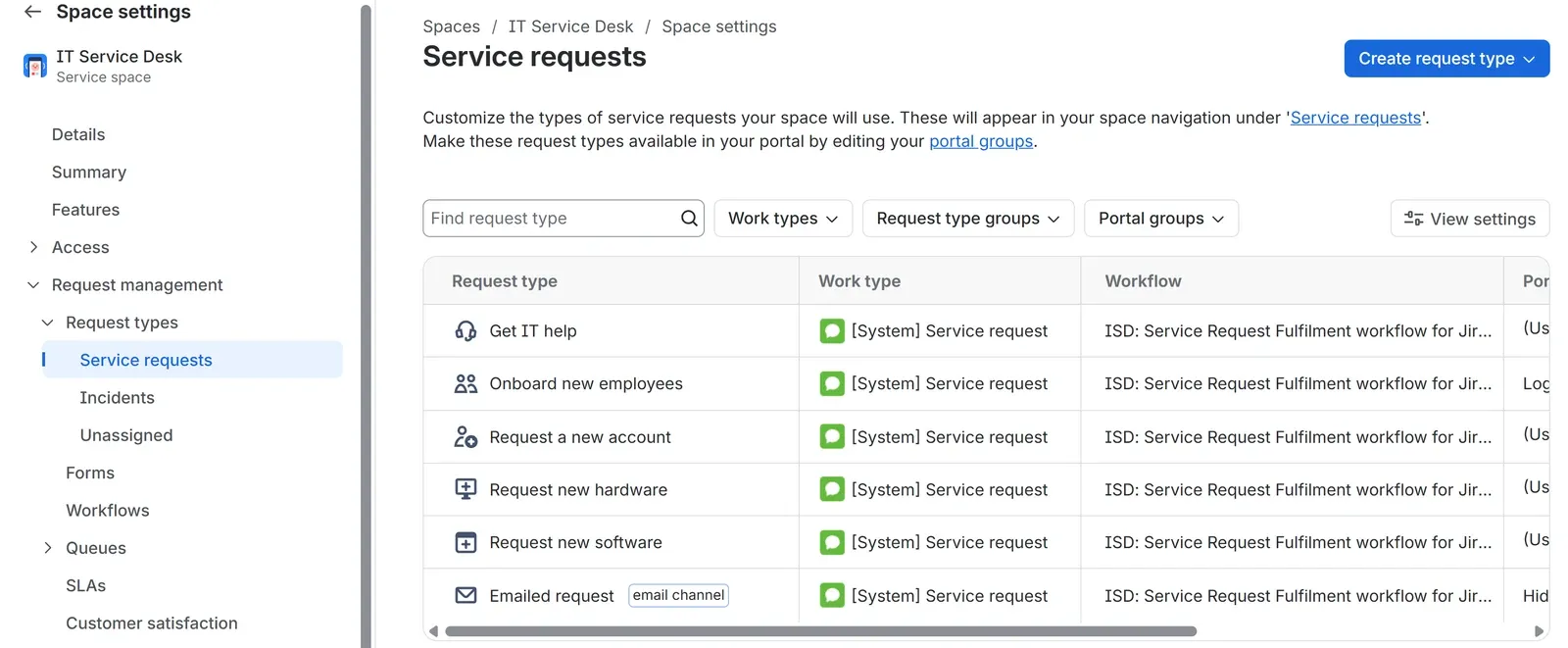
A request type is the customer-facing entry point of a service space: a name, a description, an icon and a request form. Each request type creates a work item (formerly an issue) of a work type you choose, and several request types can map to the same work type. Customers see request types; agents see work items.
You manage them in the space settings, under Request management, then Request types. Each request type has a portal group, a request form (what customers fill in), a work item view (what agents see) and customer-facing names for workflow statuses. That last part matters more than it looks: a customer who sees “Waiting for approval” understands their request better than one who sees “L2 Triage”.
Name request types the way customers describe problems
The most common portal mistake is naming request types after the team or system that handles them: “Access management”, “ERP support”, “Hardware L1”. A customer with a laptop that will not charge does not know which of those is theirs.
Name each request type after the problem or the goal, starting with a verb where you can:
- “I can’t log in” or “Reset my password”, not “Identity and access”.
- “My laptop or phone is broken”, not “Hardware incident”.
- “Get access to an app”, not “Provisioning request”.
Use the description line for examples: “Monitor, keyboard, docking station, phone”. Customers scan descriptions for the noun they have in mind.
To find the right words, read the summaries of the last hundred requests that came in by email or chat. Customers have already told you how they describe their problems. Then keep the list short: each request type should exist because it routes differently, asks different questions or needs a different SLA goal (see Jira Service Management SLA design). If two request types do the same thing, merge them. If one has not been used in six months, retire it.
How many request types should a portal group hold?
Keep each portal group short enough to scan at a glance. Atlassian’s Data Center documentation recommends grouping request types once a portal has seven or more, and groups only appear on the portal when there is more than one. A request type can belong to several groups, so it can appear wherever customers would look for it.
Group by the customer’s goal rather than by your teams: “Something is broken”, “Get access”, “Buy or request something”, “Ask a question”. Put the most used request types at the top of each group.
How do Jira Service Management forms work?
Forms are a form builder inside your service space. When you attach a form to a request type, it appears to customers as part of that request type’s request form, together with any Jira fields already configured. Forms add things a plain request form lacks, such as sections that only appear depending on earlier answers.
There are two ways to attach one: open the request type and select Attach form (create from a template or select an existing form), or open the form from Forms, go to Settings and turn on Attach to request types.
A few rules keep forms useful:
- Ask only what the agent needs to start. Every extra question costs customers time and raises the chance they pick a vaguer request type to avoid it.
- Use conditional sections instead of more request types. “Which app?” followed by app-specific questions beats ten nearly identical request types.
- Link a form field to a Jira field when you need the value elsewhere, for example in queues, JQL, SLA goals or automation. Unlinked form fields appear below the Jira fields on the portal and in the work item view.
- Do not ask the same thing twice. If a question lives in the form, remove the matching field from the request form.
Hide what customers should not have to answer
Some values are needed by the team but should never be chosen by the customer: the team or component that owns the request, a category for reporting, a label for automation. On the request type’s Request form tab, add the field and select Use preset value and hide from portal. Every request of that type then arrives with the value already set.
Some fields can only be used this way: Assignee, Linked work items and several picker fields can take a preset value but cannot be shown on the portal. Others, such as Work type, Reporter, Security level and Request participants, cannot be added to a request type at all. Atlassian lists both groups in its page on hidden and unsupported fields.
While you are on the request type, open the workflow statuses and give each internal status a name a customer understands. Several internal statuses can share one customer-facing name.
Lay out the portal from the help center down
Customers land on the help center first, then pick a portal, then a request type. Three layout decisions matter most:
- The help center home page. In the current help center editor you can arrange the home page and choose which portals to feature or hide. On Premium and Enterprise plans you can also create several help centers for different audiences.
- Each portal’s name, introduction text and logo, set in the space settings. Keep the introduction to one or two sentences about what this portal is for.
- The order of groups and request types. The most common requests should be visible without scrolling.
How do you test a service portal with real users?
Give three to five people who have never seen the portal a few realistic tasks, such as “Your laptop won’t charge. Ask for help”, and watch without helping. Note which request type they open first, where they hesitate and what they type. Each wrong first pick is a naming or grouping problem, not a user problem.
A short procedure:
- Pick five to eight tasks from real requests of the last month.
- Recruit testers from outside the team that runs the portal.
- Share the screen, read each task aloud, and stay silent while they work.
- Rename, regroup or merge after each round, then test again.
After launch, keep an eye on how often agents have to change the request type of incoming work items. A request type that is often corrected is one customers misunderstand.
The short version
Name request types after the customer’s problem, group them by the customer’s goal and keep each group short. Use forms for conditional questions, link only the fields you need elsewhere, and set internal values with preset hidden fields instead of asking customers. Lay out the help center so the common requests are visible first, then watch a handful of real users try it before launch and after every big change. If you would like help redesigning an existing portal, the Numeric Oasis Atlassian team does this kind of service management work.
We build Atlassian Marketplace apps.
Forge apps for Jira and Confluence Cloud that run inside your own Atlassian environment. Your data stays where it already is, and your security review covers one platform you have already approved.
Related reading

Jira Service Management knowledge base: a Confluence setup that actually deflects requests
A Jira Service Management knowledge base deflects requests when articles use the customer's words, customers can open them, and the portal suggests them as a request is being typed. How to link the Confluence space, set permissions, write articles, measure deflection and keep the content current.

Jira Service Management SLA design: measure the wait your customers actually feel
How to set up Jira Service Management SLAs that track the wait customers actually experience: start, pause and stop conditions, calendars, goals per priority or request type, the traps that keep SLA reports green while customers wait, and how to report on SLAs with JQL.

Simplify Jira workflows: fewer statuses, clearer boards and reports
Status sprawl makes Jira boards wide, filters fragile and reports misleading. How to simplify Jira workflows: map statuses to the right category, decide which statuses earn their place, merge the rest safely in the workflow editor, and handle workflows shared across spaces.