Jira Service Management SLA design: measure the wait your customers actually feel
How to set up Jira Service Management SLAs that track the wait customers actually experience: start, pause and stop conditions, calendars, goals per priority or request type, the traps that keep SLA reports green while customers wait, and how to report on SLAs with JQL.

A green SLA report and an annoyed customer can exist at the same time. When they do, the SLA is measuring the wrong thing.
A Jira Service Management SLA is a timer with three rules (when to start counting, when to pause, when to stop) plus a goal and a calendar for each group of requests. Designing a good one means making that timer match the wait a customer actually experiences, not the wait that is convenient to report.
That comes down to four decisions: which events start and stop the clock, which pauses are legitimate, which calendar applies, and which goal applies to which request. Get them right and the SLA report becomes something you can act on. Get them wrong and the report stays green while the queue grows.
How does an SLA work in Jira Service Management?
An SLA measures time on a work item (formerly an issue) between a start condition and a stop condition, optionally pausing in between, and compares it with a time goal. Each goal applies to the work items its JQL matches and counts time only during the working hours of its calendar.
You find SLAs in the service space settings (spaces were formerly called projects), under Request management, then SLAs. Each SLA has three parts:
- Conditions. “Start counting time when”, “Pause counting time when” (optional) and “Finish counting time when”. Each takes one or more events, such as Issue Created, Entered Status, Comment: For Customers or Resolution: Set. Several start conditions mean “any of these”.
- Goals. Rows of JQL, each with a time target and a calendar. Work items are checked against the goals from top to bottom.
- Calendars. Working days, time slots, holidays and a time zone. New calendars default to 09:00 to 17:00.
Most service spaces start with SLAs such as Time to first response and Time to resolution. Treat them as a starting point, not as a design.
Start and stop: measure what the customer is waiting for
Ask one question per SLA: what is the customer waiting for, and at what moment do they stop waiting?
- Time to first response should start when the request is created and stop when someone on the team writes to the customer: Comment: For Customers. An internal note or an assignment change is not a response, because the customer never sees it.
- Time to resolution should stop when the customer gets the outcome, usually Resolution: Set or entering a resolved status. If your workflow has a status like “Resolved, awaiting confirmation”, decide whether the customer is still waiting there. Usually they are not.
Do not stop a customer-facing clock on something only the team can see, such as moving a work item to In progress. That measures how fast you triage. Triage time is worth measuring, but as its own SLA, not under the name “response”.
When should an SLA pause?
Pause an SLA only while the customer holds the next step, typically when the work item enters a status such as Waiting for customer after an agent has asked a specific question. Do not pause for anything your own side controls, such as waiting for another team or a supplier: that hides exactly the delay the customer feels.
The pause is also the most abused part of SLA design. When Waiting for customer stops the clock, there is a quiet incentive to send work items there with a vague question. Three guards help:
- Require a customer-visible comment on the transition to Waiting for customer, for example with a transition screen where the comment is mandatory.
- Move the work item back automatically when the customer replies, with an automation rule on a customer comment, so the clock restarts without anyone having to remember.
- Report on paused time. A team whose work items spend longer paused than worked on deserves a conversation.
If you want to see time spent waiting on another team or a supplier, give it a separate SLA instead of hiding it inside the customer’s.
Calendars: count only the hours someone could have worked
A four-hour goal means something different at 16:00 on a Friday than at 09:00 on a Tuesday. Create one calendar per support schedule you actually staff, each with its own time zone and holidays, and attach it to the goals it applies to. If critical incidents have a 24/7 on-call path and everything else is business hours, that is two goals with two calendars, not one compromise.
Check that every calendar has working days set. Atlassian’s knowledge base describes SLAs that pause as soon as they start because the calendar’s work week was left empty.
Should one SLA goal cover every request?
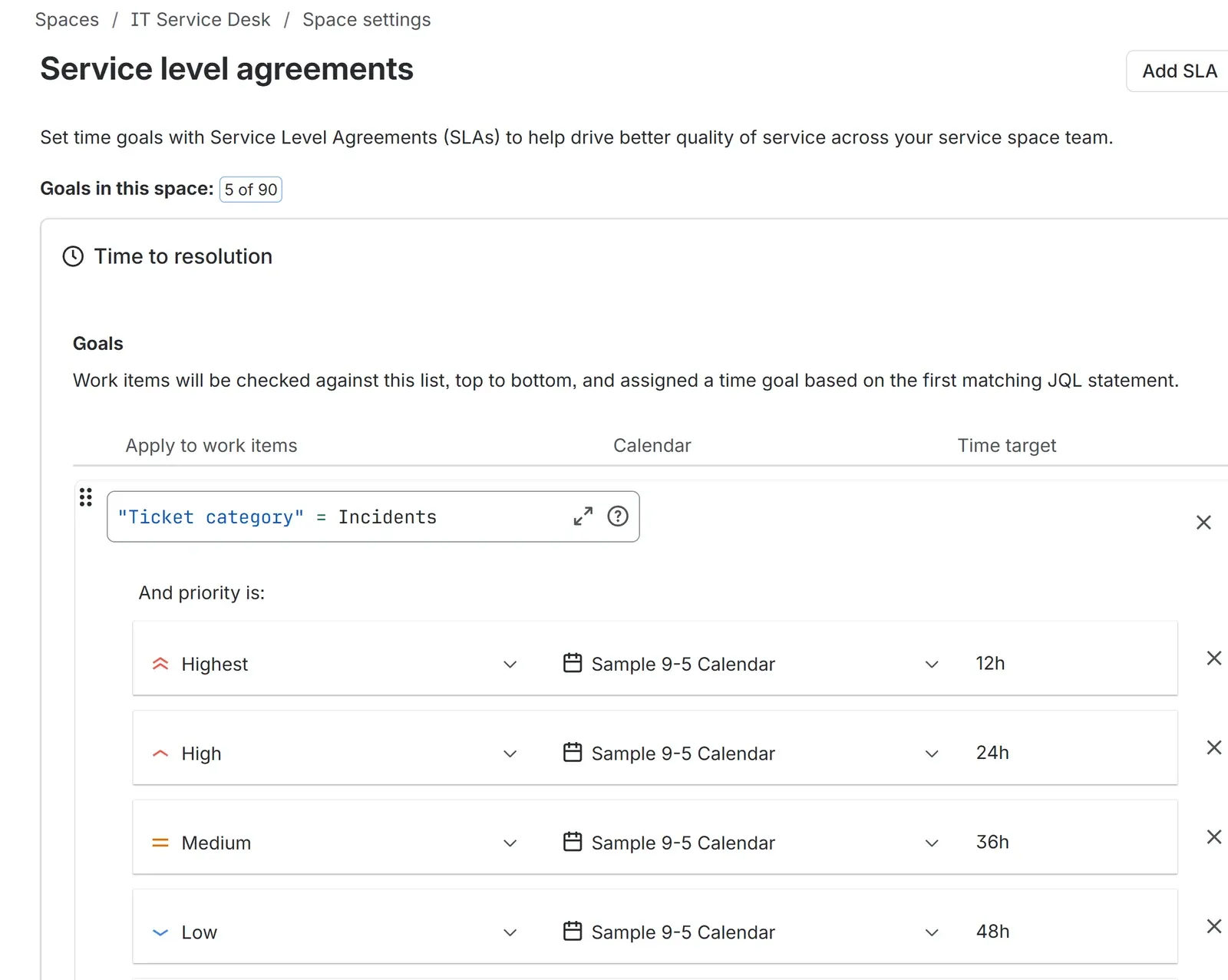
No. A single goal either sets a target that urgent requests miss or one so loose that routine requests always meet it. Split goals by whatever changes the customer’s expectation, usually priority, request type or both, and keep a catch-all goal at the bottom of the list.
A Time to resolution SLA might read, top to bottom:
issuetype = Incident AND priority = Highest   -> 4h, 24/7 calendar
issuetype = Incident                          -> 16h, business hours
issuetype = "Service Request"                 -> 24h, business hours
All remaining work items                      -> 40h, business hours
Order matters because the first matching goal applies, so put the narrowest JQL at the top. You can also group several priorities under one goal, and Atlassian notes that a grouped goal still counts as one goal, which helps if you approach the limit on goals. When a work item’s priority changes, the timer adjusts the remaining time to the goal for the new priority.
The traps that make SLA reports misleading
- Measuring resolution of work nobody owns. If work items wait unassigned in a shared queue, Time to resolution measures the queue, not the team. Add a short Time to assignment SLA (start on Issue Created, stop on Assignee: From Unassigned) so you can see where the wait really is.
- Stopping on an event you did not mean. Resolution: Set also fires when an automation rule closes stale requests. Decide whether those closures should count as meeting the goal.
- Ignoring reopened requests. A reopened work item starts a new SLA cycle. The
breached()JQL function looks at the last cycle only, whileeverBreached()catches a breach in any cycle. Use the second when you report on customer experience. - Changing the rules without a note. Keep a dated record of every SLA change, so a jump in the numbers next quarter can be read against it.
How do you report on SLAs in Jira Service Management?
Use two tools. The Reports page of your service space shows trends, such as the share of each SLA met per week, filtered by request type. JQL filters with SLA functions show live work, such as items about to breach. The first tells you whether the design works; the second tells agents what to pick up next.
A few useful filters (replace the SLA names with yours):
"Time to first response" < remaining("2h")
"Time to resolution" = everBreached()
"Time to resolution" = paused()
"Time to resolution" >= remaining("0h") AND "Time to resolution" = running()
Put the first in a queue or dashboard for agents. Review the others monthly by request type, and look for two patterns: goals that are always met with lots of time to spare, and goals that are always breached. Both mean the goal or the conditions need work. If JQL is not yet part of your routine, start with these JQL queries for administrators.
The short version
Design each SLA around what the customer is waiting for: start when they ask, pause only while they hold the next step, and stop when they get what they needed. Use calendars that match the schedules you actually staff, split goals by priority or request type with the narrowest JQL first, add a time to assignment SLA so unowned work becomes visible, and report on paused time and ever-breached cycles, not only the headline percentage. If you would like a second pair of eyes on an existing service space, the Numeric Oasis Atlassian team reviews this kind of configuration.
We build Atlassian Marketplace apps.
Forge apps for Jira and Confluence Cloud that run inside your own Atlassian environment. Your data stays where it already is, and your security review covers one platform you have already approved.
Related reading

Jira Service Management knowledge base: a Confluence setup that actually deflects requests
A Jira Service Management knowledge base deflects requests when articles use the customer's words, customers can open them, and the portal suggests them as a request is being typed. How to link the Confluence space, set permissions, write articles, measure deflection and keep the content current.

JSM request types and forms: build a portal customers can find their way around
How to design Jira Service Management request types, forms and the customer portal: name request types the way customers describe problems, group them, use forms for conditional questions, hide internal fields with preset values, lay out the help center, and test it all with real users.

Simplify Jira workflows: fewer statuses, clearer boards and reports
Status sprawl makes Jira boards wide, filters fragile and reports misleading. How to simplify Jira workflows: map statuses to the right category, decide which statuses earn their place, merge the rest safely in the workflow editor, and handle workflows shared across spaces.